miércoles, 8 de octubre de 2014

How-to install Microsoft SQL Server 2005 32-bit on Windows Server 2008 R2 64-bit without warnings

SQL Server

http://amitelman.wordpress.com/2013/01/10/install-sql-server-2005-32-bit-on-windows-server-2008-r2-64-bit/


On default installation Windows Server 2008 R2 (x64) machine you may receive System Configuration Check warnings:
- IIS Feature Requirement (Warning) 
ASP.Net Version Registration Requirement (Warning)
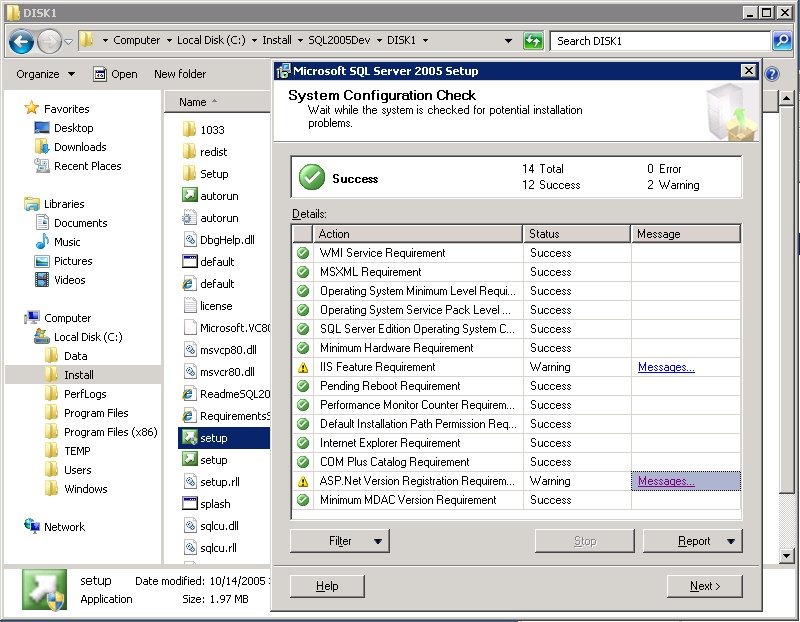
SQL2005OnW2008R2_1
You need install missing components.
Open Server Manager – Start. All Programs. Administrative tools. Server Manager.
On the left tab Click on Roles, then on Add Roles. Click Next. On Server Role screen check Web Server (IIS). Click Next two time until you get into Role Services screen.
In Addition to checked add :
HTTP Redirection
ASP.NET
Windows Authentication
IIS 6 Metabase Compatibility
IIS 6 WMI Compatibility
Click on Next
Click on Install
Run SQL server setup again. If you install 32-Bit SQL on 64-Bit Windows you may get one more Warning message:
ASP.Net Version Registration Requirement (Warning)
ASP.Net Version Registration Requirement 64-bit ASP.Net is Registered. Required 32-bit ASP.Net to install Microsoft Reporting Services 2005(32-bit).
To fix this we need Enable 32-Bit Applications Pool.
Open  Server Manager. Expand Roles, Web Server (IIS), Internet Information Services (IIS) Manager.
On the right side you will see Connections tab. Click on your server. Two more tabs will appear – Application Pools and Actions.  Expand your server by clicking on +. Click on Application Pool. Click on DefaultAppPool.
SQL2005OnW2008R2_2
On Action tab click Set ApplicationPool Deafaults… Change Enable 23-Bit Applications  value to True. OK
SQL2005OnW2008R2_3
Run Setup again. System Configuration Check runs without warnings:
SQL2005OnW2008R2_4
Installation successful.

select @@version

jueves, 2 de octubre de 2014

Servicio Integration Services (SSIS)

SQL Server

http://msdn.microsoft.com/es-es/library/ms137789(v=sql.105).aspx


El servicio Integration Services se basa en un archivo de configuración para sus valores. De manera predeterminada, este archivo de configuración se denomina MsDtsSrvr.ini.xml y se encuentra en la carpeta %Archivos de programa%\Microsoft SQL Server\100\DTS\Binn.
Normalmente, no tiene que realizar ningún cambio en este archivo de configuración, ni es necesario cambiar su ubicación predeterminada. Sin embargo, tendrá que modificar el archivo de configuración si sus paquetes están almacenados en una instancia con nombre o una instancia remota del Motor de base de datos, o en varias instancias de Motor de base de datos. Además, si mueve el archivo de configuración a una ubicación distinta de la predeterminada, tendrá que modificar la clave del Registro que especifica la ubicación del archivo.

Contenido del archivo de configuración del servicio SSIS


Al instalar Integration Services, el proceso de instalación crea e instala el archivo de configuración para el servicio Integration Services. Este archivo de configuración contiene los siguientes valores:
  • Si se envía a los paquetes un comando de detención cuando se detenga el servicio.
  • Las carpetas raíz que deben mostrarse para Integration Services en el Explorador de objetos de SQL Server Management Studio son MSDB y File System.
  • Los paquetes del sistema de archivos administrados por el servicio Integration Services se encuentran en la carpeta %Archivos de programa%\Microsoft SQL Server\100\DTS\Packages.
Este archivo de configuración también especifica qué base de datos msdb contiene los paquetes que el servicio Integration Services administrará. De forma predeterminada, el servicio Integration Services se configura para administrar los paquetes de la base de datos msdb de la instancia del Motor de base de datos que se instala al mismo tiempo que Integration Services. Si no se instala al mismo tiempo una instancia del Motor de base de datos, el servicio Integration Services se configura para administrar paquetes de la base de datos msdb de la instancia local predeterminada del Motor de base de datos.

Ejemplo de archivo de configuración predeterminado

En el ejemplo siguiente se muestra un archivo de configuración predeterminado que especifica los valores siguientes:
  • Los paquetes dejan de ejecutarse cuando se detiene el servicio Integration Services.
  • Las carpetas raíz donde se almacenan los paquetes en Integration Services son MSDB y Sistema de archivos.
  • El servicio administra los paquetes que están almacenados en la base de datos msdb de la instancia local y predeterminada de SQL Server.
  • El servicio administra los paquetes que están almacenados en el sistema de archivos en la carpeta Paquetes.
Ejemplo de archivo de configuración predeterminado


Puede modificar el archivo de configuración para permitir que los paquetes se sigan ejecutando si se detiene el servicio, para mostrar carpetas raíz adicionales en el Explorador de objetos o para especificar una carpeta distinta o carpetas adicionales del sistema de archivos que deban ser administradas por el servicio Integration Services. Por ejemplo, puede crear carpetas raíz adicionales de tipo,SqlServerFolder, para administrar paquetes en las bases de datos msdb de instancias adicionales de Motor de base de datos.
NotaNota
Algunos caracteres no son válidos en los nombres de carpeta. Los caracteres válidos para los nombres de carpeta se determinan mediante la clase System.IO.Path de .NET Framework y el campo GetInvalidFilenameChars. El campo GetInvalidFilenameCharsproporciona una matriz (específica de la plataforma) de caracteres que no se pueden especificar en los argumentos de la cadena de ruta pasada a los miembros de la clase Path. El juego de caracteres no válidos puede variar en función del sistema de archivos. Normalmente, los caracteres no válidos son las comillas ("), el carácter mayor que (<) y la barra vertical (|).

Sin embargo, tendrá que modificar el archivo de configuración para administrar los paquetes que se almacenan en una instancia con nombre o una instancia remota de Motor de base de datos. Si no actualiza el archivo de configuración, no puede usar el Explorador de objetos de SQL Server Management Studio para ver los paquetes que están almacenados en la base de datos msdb en la instancia con nombre o en la instancia remota. Si intenta utilizar el Explorador de objetos para ver estos paquetes, aparece el mensaje de error siguiente:
Failed to retrieve data for this request. (Microsoft.SqlServer.SmoEnum)
The SQL Server specified in Integration Services service configuration is not present or is not available. This might occur when there is no default instance of SQL Server on the computer. For more information, see the topic "Configuring the Integration Services Service" in SQL Server 2008 Books Online.
Login Timeout Expired
An error has occurred while establishing a connection to the server. When connecting to SQL Server 2008, this failure may be caused by the fact that under the default settings SQL Server does not allow remote connections.
Named Pipes Provider: Could not open a connection to SQL Server [2]. (MsDtsSvr).
Para modificar el archivo de configuración para el servicio Integration Services, se ha de utilizar un editor de texto.
NotaNota
Si ha instalado la versión de 64 bits y las versiones de 32 bits de SQL Server en un equipo de 64 bits y desea conectarse a la versión de 64 bits, debe modificar el archivo MsDtsSrvr.ini.xml ubicado en la carpeta Archivos de programa (x86)\Microsoft SQL Server\100\DTS\Binn.
Nota importanteImportante
Después de modificar el archivo de configuración del servicio, deberá reiniciar el servicio para usar la configuración del servicio actualizada.

Ejemplo de archivo de configuración modificado

El ejemplo siguiente muestra un archivo de configuración modificado para Integration Services. Este archivo es para una instancia con nombre de SQL Server denominada InstanceName en un servidor denominado ServerName.
Ejemplo de un archivo de configuración modificado para una instancia con nombre de SQL Server


La clave del Registro
HKEY_LOCAL_MACHINE\SOFTWARE\Microsoft\Microsoft SQL Server\100\SSIS\ServiceConfigFile 
especifica la ubicación y el nombre del archivo de configuración que utiliza el servicio Integration Services. El valor predeterminado de la clave del Registro es
C:\Archivos de programa\Microsoft SQL Server\100\DTS\Binn\MsDtsSrvr.ini.xml.
Puede actualizar el valor de la clave del Registro para utilizar un nombre y una ubicación diferentes para el archivo de configuración.
Nota de advertenciaAdvertencia
Editar el Registro de forma incorrecta puede originar problemas graves que requieran volver a instalar el sistema operativo. Microsoft no puede garantizar la resolución de dichos problemas. Haga una copia de seguridad de los datos importantes antes de modificar el Registro. Para obtener información sobre cómo hacer una copia de seguridad, restaurar y modificar el Registro, vea el artículo de Microsoft Knowledge Base, Definición del Registro de Microsoft Windows.

El servicio Integration Services carga el archivo de configuración cuando se inicia el servicio. Si se cambia la entrada del Registro, es preciso reiniciar el servicio.

miércoles, 1 de octubre de 2014

Procedimiento no oficial para renombrar la bbdd de Reporting Services

SQL Server


Procedimiento no oficial para renombrar las bbdd de Reporting Services


Realizando las pruebas de migración y cambio de nombre de una bbdd de RS a otro servidor/instancia, me encontré errores al cargar la web desde el Reporting los cuales hacían referencia al nombre original (pero sólo de la bbdd temporal del RS), es decir, el error referenciaba que la bbdd (temporal original) no existía.


El nombre de la bbdd temporal para un RS se graba en modo hardcode en los procedimientos, funciones y vistas de la bbdd principal


Buscando en Microsoft, encontré un enlace en el que se especificaba lo siguiente
 (http://msdn.microsoft.com/es-es/library/ms143724.aspx#bkmk_fixed_database_name):

Nota: Aunque el artículo es de sql 2014, también pasa en sql 2005-2008


Así que, no es tan sencillo como pasar las bbdd con otro nombre y reconfigurar el RS. Al no encontrar un procedimiento ni oficial ni extraoficial, echándole imaginación y paciencia, finalmente pude restaurar las bbdd de un RS con otro nombre (principal y temporal) pero haciendo un montón de modificaciones que seguro Microsoft se echa las manos a la cabeza. Pero parece que funciona, aunque si quedara algún fleco sin revisar, podría dar problemas. En mis pruebas, todo parece funcionar correctamente.

Los pasos que habría que seguir para llevarlo a efecto (A GRANDES RASGOS) son:

1) Backup y restore con otro nombre de las 2 bbdd del Reporting Services (se entiende que los usuarios y roles también)

2) Copia y restauración de la clave de encriptación

3) Modificación de todas las referencias que existen en todos los procedimientos almacenados
(+- 230) de la bbdd principal del RS

Para esto, seleccionamos todos los procedimientos en el SSMS y reemplazamos el nombre antiguo de la bbdd temporal por el nuevo.


Al ejecutar la consulta para que modifique todos los procedimientos del tirón, se producen errores, ya que también hay referencias en vistas y funciones.
* Modificamos y ejecutamos la consulta para guardar el cambio


* Modificamos y guardamos las vistas para manterner el cambio


4) Cambiado el nombre de servidor y el nombre de la bbdd. El contenido se mantiene.


viernes, 26 de septiembre de 2014

Optimizing tempdb Performance

SQL Server

http://technet.microsoft.com/en-us/library/ms175527(v=sql.105).aspx


Optimizing tempdb Performance


The size and physical placement of the tempdb database can affect the performance of a system. For example, if the size that is defined for tempdb is too small, part of the system-processing load may be taken up with autogrowing tempdb to the size required to support the workload every time you restart the instance of SQL Server. You can avoid this overhead by increasing the sizes of the tempdb data and log file. For information about determining the appropriate amount of disk space required for tempdb, see Capacity Planning for tempdb.

tempdb Size and Placement Recommendations


To achieve optimal tempdb performance, we recommend the following configuration for tempdb in a production environment:
  • Set the recovery model of tempdb to SIMPLE. This model automatically reclaims log space to keep space requirements small.
  • Allow for tempdb files to automatically grow as required. This allows for the file to grow until the disk is full.
    NoteNote
    If the production environment cannot tolerate the potential for application time-outs that may occur during autogrow operations, preallocate space to allow for the expected workload.
  • Set the file growth increment to a reasonable size to avoid the tempdb database files from growing by too small a value. If the file growth is too small, compared to the amount of data that is being written to tempdb, tempdb may have to constantly expand. This will affect performance. We recommend the following general guidelines for setting the FILEGROWTH increment for tempdb files.
    tempdb file size
    FILEGROWTH increment
    0 to 100 MB
    10 MB
    100 to 200 MB
    20 MB
    200 MB or more
    10%*
    * You may have to adjust this percentage based on the speed of the I/O subsystem on which the tempdb files are located. To avoid potential latch time-outs, we recommend limiting the autogrow operation to approximately two minutes. For example, if the I/O subsystem can initialize a file at 50 MB per second, the FILEGROWTH increment should be set to a maximum of 6 GB, regardless of the tempdb file size. If possible, use instant database file initialization to improve the performance of autogrow operations.
  • Preallocate space for all tempdb files by setting the file size to a value large enough to accommodate the typical workload in the environment. This prevents tempdb from expanding too frequently, which can affect performance. The tempdb database should be set to autogrow, but this should be used to increase disk space for unplanned exceptions.
  • Create as many files as needed to maximize disk bandwidth. Using multiple files reduces tempdb storage contention and yields significantly better scalability. However, do not create too many files because this can reduce performance and increase management overhead. As a general guideline, create one data file for each CPU on the server (accounting for any affinity mask settings) and then adjust the number of files up or down as necessary. Note that a dual-core CPU is considered to be two CPUs.
  • Make each data file the same size; this allows for optimal proportional-fill performance.
  • Put the tempdb database on a fast I/O subsystem. Use disk striping if there are many directly attached disks.
  • Put the tempdb database on disks that differ from those that are used by user databases.

Modifying tempdb Size and Growth Parameters


You can modify the size and file growth parameters of the tempdb data or log files by using one of the following methods:
The values for the file size and filegrowth parameters are used whenever tempdb is created. For example, if you increase the size of the tempdb data file to 20 MB and increase the file growth increment to 15 percent, the new values immediately take affect. If subsequent transactional activities cause tempdb to grow in size, the data file will return to the size of 20 MB every time you restart the instance of SQL Server.

Viewing tempdb Size and Growth Parameters


You can view the size and file growth parameters of the tempdb data or log files by using one of the following methods:
  • Running the following query.
    SELECT 
        name AS FileName, 
        size*1.0/128 AS FileSizeinMB,
        CASE max_size 
            WHEN 0 THEN 'Autogrowth is off.'
            WHEN -1 THEN 'Autogrowth is on.'
            ELSE 'Log file will grow to a maximum size of 2 TB.'
        END,
        growth AS 'GrowthValue',
        'GrowthIncrement' = 
            CASE
                WHEN growth = 0 THEN 'Size is fixed and will not grow.'
                WHEN growth > 0 AND is_percent_growth = 0 
                    THEN 'Growth value is in 8-KB pages.'
                ELSE 'Growth value is a percentage.'
            END
    FROM tempdb.sys.database_files;
    GO
    

Detecting Disk I/O Path Errors


When set to CHECKSUM, the PAGE_VERIFY option discovers damaged database pages caused by disk I/O path errors and reports these errors, such asMSSQLSERVER_823MSSQLSERVER_824, or MSSQLSERVER_825, in the SQL error log. Disk I/O path errors can be the cause of database corruption problems and are generally caused by power failures or disk hardware failures that occur at the time the page is being written to disk. For more information about I/O errors, see Microsoft SQL Server I/O Basics, Chapter 2.
In earlier versions of SQL Server, the PAGE_VERIFY database option is set to NONE for the tempdb database and cannot be modified. In SQL Server 2008, the default value for the tempdb database is CHECKSUM for new installations of SQL Server. When upgrading an installation SQL Server, the default value remains NONE. We recommend that you set the PAGE_VERIFY option for the tempdb database to CHECKSUM.

viernes, 11 de julio de 2014

How to Automate collecting Perfmon Counters of Interest

SQL Server

http://slavasql.blogspot.co.uk/2014/06/perfmon-counters-of-interest.html


How to Automate collecting Perfmon Counters of Interest

For more than two years I've tried to use wonderful poster made by Kevin Kline and Brent Ozar.
Click to get the poster

I've got several of these posters on SQL Saturday events. I've redistributed them between my friends and coworkers, but never was really able to use it in full capacity.

There are almost 100 counters that you have to setup in Perfmon and after setting just 10 you are alreeady lost.

 Last week I attended presentation of Kun Lee about automation of perfmon onBaltimore SQL Server User Group meeting. Kun showed how to use configuration file to set perfmon counters and I've used that technic for "Counters of Interest".

 Based on the Poster I've created "SQLDataCollector.config" file.
Inside it looks like this:
"\\YOUR_SQL_SERVER\Memory\Available MBytes"
"\\YOUR_SQL_SERVER\Memory\Pages Input/sec"
"\\YOUR_SQL_SERVER\Memory\Pages/sec"
"\\YOUR_SQL_SERVER\Paging File\% Usage"
"\\YOUR_SQL_SERVER\Paging File\% Usage Peak"
"\\YOUR_SQL_SERVER\Process(sqlservr)\% Processor Time"
"\\YOUR_SQL_SERVER\Process(msmdsrv)\% Processor Time"
"\\YOUR_SQL_SERVER\Processor(_Total)\% Processor Time"
"\\YOUR_SQL_SERVER\Processor(_Total)\% Privileged Time"

You have to replace word "YOUR_SQL_SERVER" by name of your SQL Server or by it's IP address.

Then I used simple "loading" command:
logman create counter BASELINE -f csv -max 200 -si 00:01:00 -b 06/19/2014 11:06:00AM  -v mmddhhmm -o "C:\Temp\Test\Perfmon\Perfmon.csv" -cf "C:\Temp\Test\Perfmon\SQLDataCollector.config"

In order to use it you have to modify following:
-0 - Location and name of resulting trace file;
-cf - Location of config file;  
-b Date and time when you want to run your monitoring. If you want to start trace manually you can start perfmon.exe and run your trace from there:

Also, you can adjust data collecting interval which in mi case set as reccomended by Kun Lee a minute  (-si). There are much more options of "logman" to choose from, you can even set tracing to SQL Server.

Hope everybody now can use that poster much easier.