viernes, 5 de agosto de 2016

Diseñar particiones para administrar subconjuntos de datos

SQL Server

https://technet.microsoft.com/es-es/library/ms191174(v=sql.105).aspx

Diseñar particiones para administrar subconjuntos de datos


SQL Server 2008 R2

Si crea particiones de una tabla o un índice, puede mover subconjuntos de datos de forma rápida y eficaz con la instrucción Transact-SQL ALTER TABLE...SWITCH de las maneras siguientes:
  • Puede agregar una tabla como partición a una tabla con particiones ya existente.
  • Puede cambiar una partición de una tabla con particiones a otra.
  • Puede quitar una partición para crear una sola tabla.
Estos escenarios pueden resultar útiles si desea agregar nuevos datos a una tabla con particiones y quitar datos antiguos de la misma tabla con particiones de forma regular. Esta operación puede implicar grandes o pequeñas cantidades de datos en diferentes escenarios. Si los nuevos datos que agrega deben cargarse, limpiarse o transformarse, se pueden tratar como una entidad independiente antes de agregarlos como una partición. Los datos antiguos se pueden archivar o guardar en el almacén. Independientemente del tamaño de la colección, la transferencia es rápida y eficaz ya que, a diferencia del caso de una instrucción INSERT INTO SELECT FROM, los datos no se mueven físicamente. Solo cambian de una partición a otra los metadatos relativos a la ubicación del almacenamiento.

Caso de ejemplo


En el escenario de particiones de la base de datos de ejemplo AdventureWorks2008R2, Adventure Works Cycles archiva sus datos antiguos de la tablaTransactionHistory en una tabla TransactionHistoryArchive; para ello, traslada las particiones de una tabla a otra. Esto se lleva a cabo mediante la creación de particiones de TransactionHistory en el campo TransactionDate. El intervalo de valores de cada partición es un mes. La tabla TransactionHistory conserva las transacciones actuales del año y TransactionHistoryArchive guarda las transacciones anteriores. Al crear las particiones de las tablas de esta forma, los datos antiguos del año correspondientes a un mes se pueden transferir mensualmente de TransactionHistory a TransactionHistoryArchive.

jueves, 23 de junio de 2016

UPDATE Statement when updating one table with data from another table

SQL Server

http://www.techonthenet.com/sql_server/update.php

SQL Server: UPDATE Statement

This SQL Server tutorial explains how to use the UPDATE statement in SQL Server (Transact-SQL) with syntax and examples.

Description

The SQL Server (Transact-SQL) UPDATE statement is used to update existing records in a table in a SQL Server database. There are 3 syntaxes for the UPDATE statement depending on whether you are performing a traditional update or updating one table with data from another table.

Syntax

The syntax for the UPDATE statement when updating one table in SQL Server (Transact-SQL) is:
UPDATE table
SET column1 = expression1,
    column2 = expression2,
    ...
[WHERE conditions];
OR
The syntax for the UPDATE statement when updating one table with data from another table in SQL Server (Transact-SQL) is:
UPDATE table1
SET column1 = (SELECT expression1
               FROM table2
               WHERE conditions)
[WHERE conditions];
OR
The syntax for the SQL Server UPDATE statement when updating one table with data from another table is:
UPDATE table1
SET table1.column = table2.expression1
FROM table1
INNER JOIN table2
ON (table1.column1 = table2.column1)
[WHERE conditions];

Parameters or Arguments

column1, column2
The columns that you wish to update.
expression1, expression2
The new values to assign to the column1, column2. So column1 would be assigned the value of expression1, column2 would be assigned the value of expression2, and so on.
WHERE conditions
Optional. The conditions that must be met for the update to execute.

Example - Update single column

Let's look at a very simple SQL Server UPDATE query example.
For example:

SQL Jobs on a calendar

SQL Server

https://thelonedba.wordpress.com/2016/04/30/sql-jobs-on-a-calendar


SQL Server backup jobs are IO-intensive, he says, stating the obvious.
When you have a lot of servers which have been set up over the years, and you’re new to the environment, and want to see when storage is being hammered , you might end up thinking that a calendar view might be of help – I know I did.
So all I had to do was figure out a query to look at SQL Server scheduled task history complete with start & end times (which I’d already got), and then get those into a series of appointments in Outlook so I could see when the busy times were.

Step 0: Registered Servers Groups

Step 0?  Well, this isn’t directly related to what I’m doing, but helps a lot.
If you don’t know about Registered Servers, then go and find out about them now.  I’ll wait.  They’re a great way of logically grouping your server estate and allow you can run queries against multiple servers at the same time pulling results back into a single result set.
I’m using them from a Central Management Server; this provides a single shared location that gives the whole team a view of the SQL Server Estate, while removing the overhead of everyone keeping their own lists.
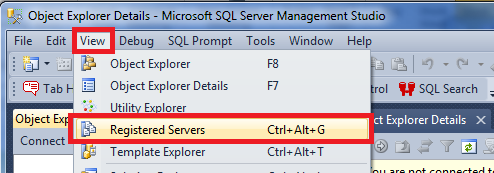
Start working with Registered Servers groups by launching SQL Server Management Studio, and hitting CTRL+ALT+G or selecting “Registered Servers” on the “View” menu.
LaunchRegisteredServers
ViewRegisteredServers
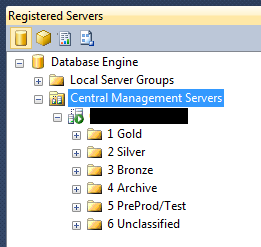
(I’ve blocked out the actual server name).
As you can see, we have six groups of servers defined.  What you can’t see is that there are folders within those folders that contain multiple servers, so you can keep more organised lists.  More of how this stuff works another time.  Maybe.
I’m interested in the top tier “gold standard” servers, so I’ll select “1 Gold”, and click to create a new query.  This will take a while – a single query window will open and attempt to connect to all the SQL Servers registered in that group.

Step 1: Query for SQL Job Runtime Information

Of course, this assumes that we’re holding on to SQL Server Agent Job History for a little while – the default job history retention settings might be too aggressive to allow you to get history going back any reasonable length of time.

miércoles, 6 de abril de 2016

Managing the size of the SQL Server SSIS catalog database

SQL Server

https://www.mssqltips.com/sqlservertip/3307/managing-the-size-of-the-sql-server-ssis-catalog-database/

Escenario

I have implemented the SSIS catalog that comes with SQL Server 2012 and I love the reporting and centralization that comes with it, however, I noticed after a few months that the database was growing exponentially. How can I keep the size of this database to a minimum?


Configuration

The SSIS catalog is the central point for working with Integration Services (SSIS) projects that you’ve deployed to the SSIS server. When the SSIS catalog is implemented, the SSISDB database is automatically created. The scope of this tip will focus on the SSISDB growth more than the SSIS catalog itself.
SSIS projects, packages, parameters, environments, and operational history are all stored in the SSISDB database so if you have hundreds of SSIS packages or packages that run every few minutes you could see how the database storing all the historical information would grow exponentially.
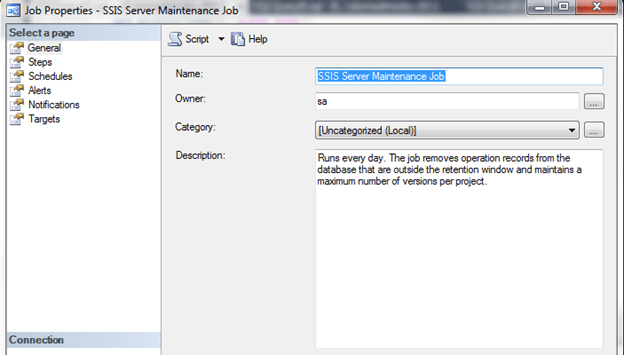
Also included when you enable this feature is a SQL Server Agent Job called SSIS Server Maintenance job:
A SQL Server Agent job called SSIS Server Maintenance job.
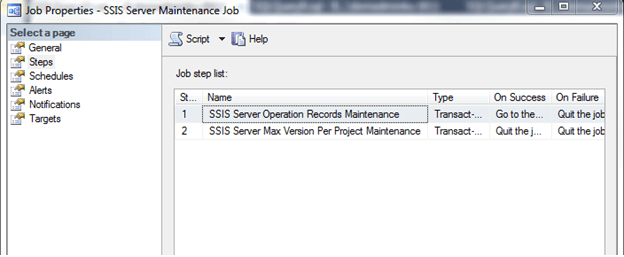
Inside this job are two steps, SSIS Server Operation Records Maintenance and SSIS Server Max Version Per Project Maintenance, that will help clean up the database. By default, this job is set to run at 12:00am nightly which is sufficient:
SSIS Server Operation Records Maintenance and SSIS Server Max Version Per Project Maintenance
Looking at the first step, SSIS Server Operations Records Maintenance, you will notice that it executes a stored procedure named internal.cleanup_server_retention_window. This sounds like it could be the stored procedure that cleans up history:

Integration Services Logging Levels in SQL Server 2016

SQL Server

https://www.mssqltips.com/sqlservertip/4034/integration-services-logging-levels-in-sql-server-2016/

Escenario

At the time of writing, SQL Server 2016 preview (CTP 2.3) has been released and there are some changes for the Integration Services (SSIS) Catalog logging levels. This tip will explain what is new and how you can use it.


Configuration

Integration Services Logging Levels

In SQL Server 2012, the SSIS catalog was introduced. This catalog provides a central administration platform for the SSIS environment. One of its features is the logging levels, where each logging level specifies which events are logged to the SSIS catalog. Do not confuse this with the log providers of an SSIS package. The log providers log events to a specific destination: SQL Server, a flat file, an XML file and so on. A logging level is a configuration option for the built-in logging of the SSIS catalog: every time you run an SSIS package in the catalog, events are logged to tables in the SSISDB database.
In its initial release and in SQL Server 2014, Integration Services had 4 logging levels:
  • None - logging is turned off.
  • Basic - all events are logged, except custom and diagnostic events. The name is quite misleading, as a lot of information is logged. This is the default logging level of the SSIS catalog.
  • Performance - only performance statistics and the OnWarning and OnEvent are logged. This logging level might log less information than the basic logging level, but it depends on the number of data flows and their complexity. Data flow performance information of this logging level is shown in the catalog report Execution Performance.
  • Verbose - all events are logged. Only use this logging level for advanced troubleshooting or fine tuning.
In the SQL Server 2016 preview, a new logging level has been added and there is now the possibility to create your own custom logging levels. Both will be explained in the following sections.

SQL Server 2016 preview

As mentioned earlier, at the time of writing SQL Server 2016 is still in preview (at the time of writing CTP 2.3 has been released). This means that the features of Integration Services and its catalog can still change and that functionality might change, disappear or be added.

The RuntimeLineage Logging Level

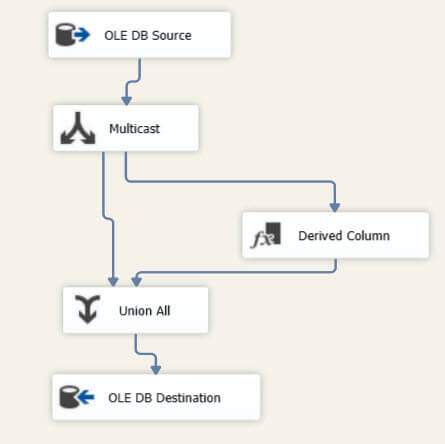
Currently, not a lot of information is out there on this logging level. The documentation states: Collects the data required to track lineage in the data flow. My guess is this logging level might be used in other features/products to track the lineage of the data; i.e. where does the data come from and where does it go to? In order to test this logging level, I created a very basic package:
Simple Data Flow
It reads data from a table, adds a custom column, merges streams and writes the data to a table. When the package is executed, we can see in the catalog view catalog.event_message_context that extra information about the dataflow has been logged:

domingo, 27 de diciembre de 2015

How to Use sp_WhoIsActive to Find Slow SQL Server Queries

SQL Server

http://www.brentozar.com/archive/2010/09/sql-server-dba-scripts-how-to-find-slow-sql-server-queries/


SQL Server database administrators need to be able to quickly find out what queries and stored procedures are running slow.  Microsoft includes sp_who and sp_who2 in SQL Server 2005 and 2008, but there’s a much better tool, and it’s completely free.
In this five minute tutorial video, I explain how to use sp_WhoIsActive from Adam Machanic (Blog – @AdamMachanic):


My Favorite sp_WhoIsActive Parameters

sp_WhoIsActive has all kinds of parameters, but here’s my favorites. Keep in mind that the more parameters you pass in, the more work sp_WhoIsActive has to do in order to get the data you want from SQL Server’s Dynamic Management Views (DMVs), and the slower it will run:
  • @get_plans = 1 – this gives you the execution plans for running queries.
  • @get_locks = 1 – gives you an XML snippet you can click on to see what table, row, object, etc locks each query owns. Useful when you’re trying to figure out why one query is blocking others.
  • @get_task_info = 2 – if a query has gone parallel and you’re troubleshooting CXPACKET waits, you can figure out what each task in the query is waiting on.

Where to Download sp_WhoIsActive

Learn About More of the Best Free SQL Server Downloads

I’ve put together a 90-minute video training class you can watch right now. It covers dozens of my other favorite powerful freebies – free books, performance tuning tools, and more.

martes, 22 de septiembre de 2015

Getting Started with Diskspd

SQL Server

http://www.brentozar.com/archive/2015/09/getting-started-with-diskspd


 Diskspeed, or diskspd.exe, is Microsoft’s replacement for SQLIO. While I’m not going to replace our SQLIO tutorial, you can use the information in here to replicate the same type of tests on your systems to get the information you need. During the Dell DBA Days, Doug and I used diskspd as one of our techniques for getting a baseline of raw performance. We wanted to get an idea of how fast the servers and storage before running SQL Server specific tests.

HOW DO I GET DISKSPD?

You can download diskspd directly from Microsoft – Diskspd, a Robust Storage Testing Tool, Now Publically Available. That page has a download link as well as a sample command.
The upside is that diskspd is a fully self-contained download. You don’t need Java, .NET, or anything else installed to run it. Apart from Windows – you’ll still need Windows.

HOW DO I USE DISKSPD?

With the command line, of course!
In all seriousness, although diskspd is the engine behind Crystal Disk Mark, it stands on its own as a separate tool. Download the executable and unzip it to an appropriate folder. There are going to be three sub-folders:
  • amd64fre – this is what you need if you have a 64-bit SQL Server
  • armfre
  • x86fre
I took the diskspd.exe file from the appropriate folder and dumped it in C:\diskspd so I could easily re-run the command. Let’s fire up a command prompt and try it out.
Here’s a sample that we ran:

SQLIO Tutorial: How to Test Disk Performance

SQL Server

http://www.brentozar.com/archive/2008/09/finding-your-san-bottlenecks-with-sqlio/

Storage is a black box, right? The SAN admins ask how much storage space you need, you tell them, and then they give it to you. They don’t tell you how fast (or slow) it is, they don’t know whether it meets your needs, and they probably don’t know where the bottlenecks are.

It’s time to find out how fast your storage really is using SQLIO – perhaps the worst-named tool in history. SQLIO has absolutely nothing to do with SQL Server – it’s just a tool to test IO. Whether you’re an Exchange guy, a SQL DBA, or a file & print fella, SQLIO will help you push your storage to the limit to see when it breaks.

STEP 1: DOWNLOAD SQLIO FROM MICROSOFT FOR FREE

Download SQLIO from Microsoft and install it on the Windows server you’d like to test.  It’s extremely lightweight – it takes less than 1MB on disk – and works on any version of Windows.  The support page doesn’t say Windows 2008, but it works fine.
Install it in c:\Program Files no matter what drive you want to test.  I prefer installing it in C because I delete and recreate my non-system partitions repeatedly while I’m testing them.  That way, I can find out if various parameters are faster or slower without reinstalling the OS.
After installing SQLIO, you won’t see anything in the Start menu because it doesn’t have a graphical user interface.  Deep calming breaths – this is easier than it looks.  Fire open Windows Explorer and go into the directory where you installed SQLIO, like c:\Program Files(x86)\SQLIO.

STEP 2: SET UP SQLIO’S CONFIGURATION FILES

If you just start running SQLIO, it uses a laughably small 8MB test file by default.  The problem with such a small test file is that it’s probably smaller than the cache involved in your various storage components (drives, storage processor, etc.)  I prefer using a 20GB testing file for starters.  Your SAN might have a larger cache, but keep in mind that it divides that cache across all of the servers connected to the SAN.

lunes, 14 de septiembre de 2015

Configurando Log Shipping

SQL Server

https://msdn.microsoft.com/es-es/sqlserver/hh291511


Introducción

El hecho de que Log Shipping sea una de las tecnologías que antes vinieron de la mano con las primeras versiones de SQL Server, no quita que sea siendo muy válido en una gran cantidad de soluciones a problemas reales de la actualidad. Pero log Shipping tiene un requerimiento que lo limita de entrada a funcionar en un entorno gestionado bajo un único Active Directory (o al menos entre varios AD, pero con confiabilidad). En este artículo vamos a ver cómo podemos personalizar un entorno en el que sin disponer de confiabilidad entre varios AD, podamos hacer funcionar Log Shipping.
Log Shippingconsiste en automatizar el proceso de restauración de una copia de seguridad del registro de transacciones en otra base de datos en otra máquina.


Ejemplos en los que Log Shipping encaja como tecnología a implementar serían los siguientes:
  • Centralización de todas las BBDD de las "instancias sql satélite" de nuestra empresa, bajo un único servidor, posibilitando que se realice una explotación posterior de los datos mediante herramientas de inteligencia de negocio.
  • Disponibilidad redundante de la información físicamente en diferentes ubicaciones
  • Necesitamos un entorno con múltiples nodos secundarios de solo lectura
  • Necesitamos un sistema de configuración sencilla y mínimo coste de mantenimiento.
  • Disponemos de un entorno de conectividad intermitente
Algunas de las características más interesantes de Log Shipping se podrían resumir en las siguientes:
  • Permite que el envío de información sea programado fácilmente a intervalos definidos y regulares, de forma que no haga falta una conexión abierta constante, minimizando el riesgo de problemas ante cortes de conexión.
    • Si ocurre algún error en el envío (por ejemplo no hay conexión) se seguirá intentando en los siguientes envíos programados
  • Permite la monitorización automática del estado de la configuración, minimizando la labor de los administradores de base de datos.
  • Permite múltiples bases de datos secundarias
  • Permite utilizar cualquier BBDD secundaria como respaldo de forma que en caso de caída del servidor principal, se pueda levantar como servidor principal
  • Se permite la configuración automática a través de despliegues de scripts T-SQL minimizando errores de intervención manual.
En definitiva, podemos apoyarnos en log shipping, para realizar arquitecturas de comunicaciones que faciliten la consolidación de información, siguiendo esquemas como estos:


Resumen de funcionamiento de Log Shipping

A grandes rasgos, los pasos que realiza Log Shipping de forma automática son los siguientes:

sábado, 5 de septiembre de 2015

Export all SSIS packages from msdb using Powershell

SQL Server

http://sqlblog.com/blogs/jamie_thomson/archive/2011/02/02/export-all-ssis-packages-from-msdb-using-powershell.aspx


Have you ever wanted to dump all the SSIS packages stored in msdb out to files? Of course you have, who wouldn’t? Right? Well, at least one person does because this was the subject of a thread (save all ssis packages to file) on the SSIS forum earlier today.

Some of you may have already figured out a way of doing this but for those that haven’t here is a nifty little script that will do it for you and it uses our favourite jack-of-all tools … Powershell!!

Imagine I have the following package folder structure on my Integration Services server (i.e. in [msdb]):

image


There are two packages in there called “20110111 Chaining Expression components” & “Package”, I want to export those two packages into a folder structure that mirrors that in [msdb]. Here is the Powershell script that will do that:

Param($SQLInstance = "localhost")

#####Add all the SQL goodies (including Invoke-Sqlcmd)#####
add-pssnapin sqlserverprovidersnapin100 -ErrorAction SilentlyContinue
add-pssnapin sqlservercmdletsnapin100 -ErrorAction SilentlyContinue
cls 

$Packages =  Invoke-Sqlcmd -MaxCharLength 10000000 -ServerInstance $SQLInstance -Query "WITH cte AS (
 SELECT    cast(foldername as varchar(max)) as folderpath, folderid
 FROM    msdb..sysssispackagefolders
 WHERE    parentfolderid = '00000000-0000-0000-0000-000000000000'
 UNION    ALL
 SELECT    cast(c.folderpath + '\' + f.foldername  as varchar(max)), f.folderid
 FROM    msdb..sysssispackagefolders f
 INNER    JOIN cte c        ON    c.folderid = f.parentfolderid
 )
 SELECT    c.folderpath,p.name,CAST(CAST(packagedata AS VARBINARY(MAX)) AS VARCHAR(MAX)) as pkg
 FROM    cte c
 INNER    JOIN msdb..sysssispackages p    ON    c.folderid = p.folderid
 WHERE    c.folderpath NOT LIKE 'Data Collector%'"

Foreach ($pkg in $Packages)
{
    $pkgName = $Pkg.name
    $folderPath = $Pkg.folderpath
    $fullfolderPath = "c:\temp\$folderPath\"
    if(!(test-path -path $fullfolderPath))
    {
        mkdir $fullfolderPath | Out-Null
    }
    $pkg.pkg | Out-File -Force -encoding ascii -FilePath "$fullfolderPath\$pkgName.dtsx"
}


To run it simply change the “localhost” parameter of the server you want to connect to either by editing the script or passing it in when the script is executed. It will create the folder structure in C:\Temp (which you can also easily change if you so wish – just edit the script accordingly). Here’s the folder structure that it created for me:
 
image


Notice how it is a mirror of the folder structure in [msdb].
Hope this is useful!

Moving SSIS Packages to New Server

SQL Server

http://dba.stackexchange.com/questions/68481/moving-ssis-packages-to-new-server


I have a number of SSIS packages in a number of folders on MSDB SSIS on SQL Server 2008R2. We are migrating to a new server host but remaining on SQL Server 2008R2.
How can I copy/migrate these SSIS packages to the new server? Is Dtutil the best option?
Script posted here for posterity. This applies for 2008+ packages or 2012/2014 package that have used the package deployment model. With 2005, sysssispackagefolder would be replaced with sysdtspackages90 and sysssispackagefolders with sysdtspackagefolders90
;
WITH FOLDERS AS
(
    -- Capture root node
    SELECT
        cast(PF.foldername AS varchar(max)) AS FolderPath
    ,   PF.folderid
    ,   PF.parentfolderid
    ,   PF.foldername
    FROM
        msdb.dbo.sysssispackagefolders PF
    WHERE
        PF.parentfolderid IS NULL

    -- build recursive hierarchy
    UNION ALL
    SELECT
        cast(F.FolderPath + '\' + PF.foldername AS varchar(max)) AS FolderPath
    ,   PF.folderid
    ,   PF.parentfolderid
    ,   PF.foldername
    FROM
        msdb.dbo.sysssispackagefolders PF
        INNER JOIN
            FOLDERS F
            ON F.folderid = PF.parentfolderid
)
,   PACKAGES AS
(
    -- pull information about stored SSIS packages
    SELECT
        P.name AS PackageName
    ,   P.id AS PackageId
    ,   P.description as PackageDescription
    ,   P.folderid
    ,   P.packageFormat
    ,   P.packageType
    ,   P.vermajor
    ,   P.verminor
    ,   P.verbuild
    ,   suser_sname(P.ownersid) AS ownername
    FROM
        msdb.dbo.sysssispackages P
)
SELECT 
    -- assumes default instance and localhost
    -- use serverproperty('servername') and serverproperty('instancename') 
    -- if you need to really make this generic
    -- File extraction command line
    'dtutil /sourceserver localhost /SQL "'+ F.FolderPath + '\' + P.PackageName + '" /copy file;".\' + P.PackageName +'.dtsx"' AS cmd
    -- Move Package command line
    -- 'dtutil /SQL "'+ F.FolderPath + '\' + P.PackageName + '" /SOURCEUSER srcUserName /SOURCEPASSWORD $Hj45jhd@X /DestServer <servername> /MOVE SQL;"'+ F.FolderPath + '\' + P.PackageName + '" /DESTUSER destUserName /DESTPASSWORD !38dsFH@v' AS cmd
FROM 
    FOLDERS F
    INNER JOIN
        PACKAGES P
        ON P.folderid = F.folderid
 WHERE
     F.FolderPath <> '\Data Collector'